
Getting Started with AnimeLab
Welcome to AnimeLab. Whether you are running the Android APK, a Desktop package, or a Docker container, the interface and core workflow are identical.
First-Run Onboarding
When you open AnimeLab for the first time, a quick setup wizard guides you through:
- Update check (optional): Checks GitHub Releases without downloading anything unless you confirm. Returning users skip blocking waits and receive an asynchronous notification if a newer version is available.
- Theme & Language: Choose Dark, Light, or System, pick from 5 Material-inspired color palettes (
Classic,Teal,Lavender,Amber/Ember,AMOLED), and switch cleanly between English and French. - Storage directory:
- On Desktop / Docker, choose or confirm the download directory (default:
~/Downloads/AnimeLab). - On Android, select
Downloads/AnimeLabor pick a custom folder (e.g.Documents/AnimeLabor SD card) via the system folder picker.
- On Desktop / Docker, choose or confirm the download directory (default:
- Android optional permissions: Grant APK installation (for extension APKs and in-app self-updates), notifications (for download progress), and unrestricted background battery mode for long batch downloads.
Browsing & Quick Search (Ctrl + K / Cmd + K)
- Open Home for Latest Releases carousels grouped by active sources and quick resume cards.
- Press
Ctrl + K(orCmd + Kon macOS) anywhere on Desktop/Web to open the command palette and jump straight to any series or source search.
Downloading Episodes & Keeping Editions Separate
AnimeLab strictly isolates DUB, SUB (VF, VOSTFR, VO), and raw editions by metadata identity and file path so downloading a dubbed episode never overwrites your subbed copy:
- Open any series and click Batch Download (or download individual episodes).
- Choose your output profile:
- Softsubbed MKV (preserves subtitle tracks separately; fastest, no video re-encoding).
- Hardsubbed MP4 (burns subtitles cleanly into H.264/AAC for maximum TV/player compatibility).
- Drag-reorder queue priority, pause/resume anytime, or cap global transfer speed in Downloads.
Library & Automatic Downloads (Auto-DL)
- Star a series to add it to Library. AnimeLab persists anime details and cover artwork locally in SQLite so your library remains browseable offline.
- Enable
Auto-DLper favorite series (and optionally select a preferred version/language). - Enable Plex / Jellyfin folder naming under Settings → Downloads if you want your downloaded episodes automatically structured for media servers.
Interface Preview
Interface Showcase
Designed for effortless watching, downloading, and organizing
Explore real screenshots across Desktop, Web/PWA, and the standalone Android app.
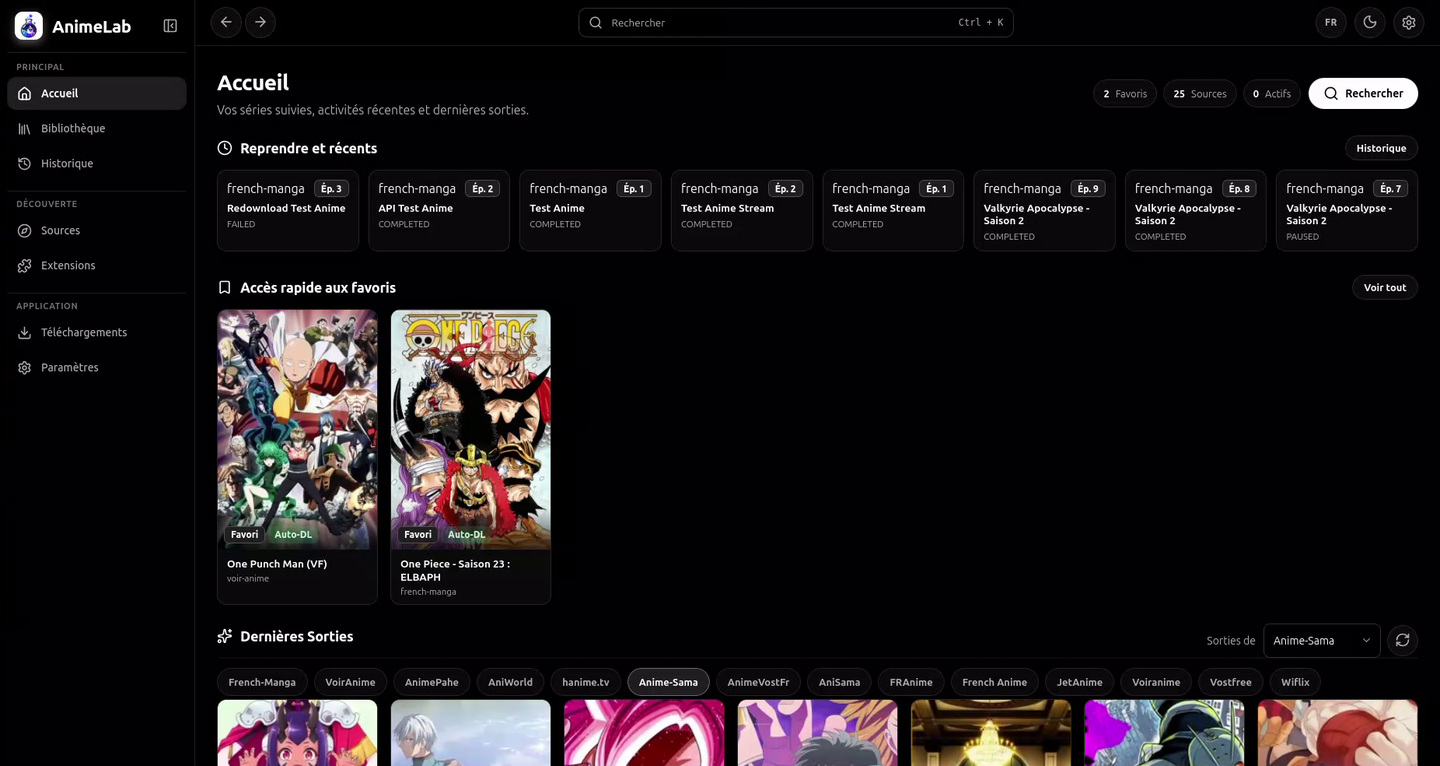
Dark Teal dashboard with per-source release carousels and quick resume.